
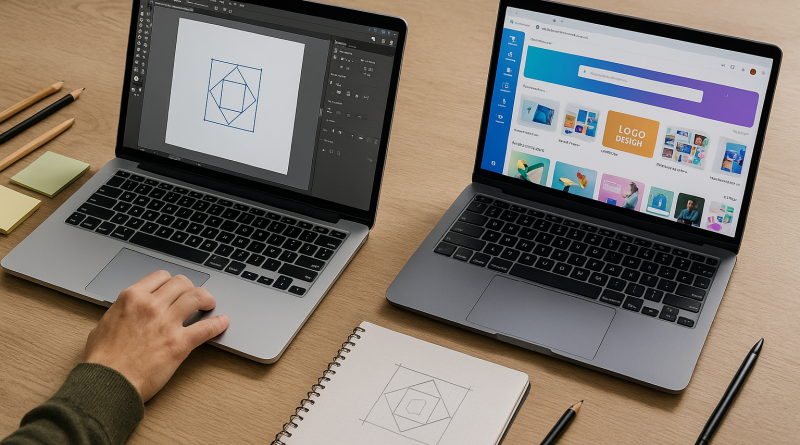
Adobe Illustrator vs Canva: Which Is Better for Serious Designers in 2025?
This article may contain affiliate links. This means we may earn a small commission if you make a purchase, at no extra cost to you.
If you work with visuals in 2025, you’ve probably asked yourself a simple question with a not-so-simple answer:
“Do I really need Adobe Illustrator, or can I just use Canva?”
Both tools let you create graphics, logos and social media assets—but they’re built for very different users and workflows. In this guide, we’ll break down the real differences between Adobe Illustrator and Canva, and help you decide which one makes more sense for you.
Quick Answer: Who Should Choose Which?
If you only remember one section, make it this:
-
Choose Adobe Illustrator if
You’re a serious designer, brand specialist, or creative professional who needs full control over vector graphics, logos, icons and print-ready artwork. -
Choose Canva if
You’re a marketer, small business owner, content creator or beginner who needs to create good-looking designs fast, without a steep learning curve.
Many people end up using both: Illustrator for high-end, precise work and Canva for quick day-to-day content.
Core Difference: Professional Vector Tool vs Template-First Design Platform
Adobe Illustrator: Industry-standard vector tool
Illustrator is a professional vector graphics editor. That means:
-
Your designs stay sharp at any size
-
It’s ideal for logos, icons, packaging, typography and complex illustrations
-
It’s part of the broader Adobe Creative Cloud ecosystem
Illustrator is built for people who want full control over every anchor point, curve and color.
Canva: Template-driven design made simple
Canva is a template-first design platform that runs in the browser (and via apps). It focuses on:
-
Ready-made templates for social media, presentations, posters and more
-
Drag-and-drop editing with minimal learning curve
-
Collaboration and brand kits for non-designers and teams
Canva is built to help you ship content quickly—even if you don’t have a design background.
Learning Curve and Ease of Use
Illustrator
-
Steeper learning curve:
Expect to invest time to understand vector paths, layers, typography controls and print/export settings. -
Power pays off later:
Once you’re comfortable, you can create very custom, precise work that’s hard to replicate in simpler tools.
Canva
-
Beginner-friendly:
Most people can create a decent design in their first session. -
Guided by templates:
The templates do a lot of heavy lifting, which is great for speed—but can limit originality if you rely on them too much.
Design Control and Flexibility
What Illustrator is great at
-
Precise vector logo design
-
Icon sets and custom illustration systems
-
Detailed control over typography and spacing
-
Print-ready artwork with CMYK support and advanced export options
-
Complex, layered compositions that need to be adapted across many formats
What Canva is great at
-
Fast social media graphics in multiple sizes
-
Simple posters, flyers and basic print materials
-
Presentation decks, quick mockups and internal documents
-
Repetitive content where templates and brand kits save time
If you regularly create brand assets that must be scalable, unique and technically correct, Illustrator is still the better fit.
Collaboration, Assets and Workflow
Illustrator in a professional workflow
Illustrator fits best when you:
-
Work in a team of designers or with agencies and print shops
-
Already use Photoshop, InDesign, After Effects or Premiere Pro
-
Need to share source files with other professionals who also use Adobe
You can build a full pipeline: Illustrator for vector work, Photoshop for image editing, InDesign for layouts and so on.
Canva in a content workflow
Canva shines when:
-
You collaborate with non-designers (marketers, sales, founders, clients)
-
You need commenting and quick approvals in the browser
-
You maintain a brand kit (logos, fonts, color palette) that multiple people reuse
Designers often create “master assets” in Illustrator and then export elements to Canva so the rest of the team can reuse them safely.
Cost and Long-Term Value
Pricing changes over time, so always check the official sites for current numbers. But as a general rule:
-
Illustrator is part of Adobe Creative Cloud and is priced like a professional tool (single-app or All Apps plan).
-
Canva has a free tier plus a relatively affordable Pro plan for individuals and teams.
If design is your career or a core part of your business, Illustrator tends to justify its cost over time. If design is just one small part of your role, Canva often makes more sense.
Which One Should You Choose?
Ask yourself these questions:
-
Do I need pixel-perfect control over logos, icons and vector shapes?
-
Yes → Illustrator is the safer long-term choice.
-
No → Canva might cover most of your needs.
-
-
Will I work with printers, agencies or other designers who expect Adobe files?
-
Yes → Illustrator is almost a must.
-
No → Canva’s export options might be enough.
-
-
Do I mainly need social posts, basic marketing visuals and presentations?
-
Yes → Canva is built exactly for that.
-
-
Do I want to build a career as a professional designer or brand specialist?
-
Yes → Learning Illustrator (and the Adobe ecosystem) is a strong investment.
-
Final Thoughts
-
For serious, long-term design careers, Adobe Illustrator is still the industry standard for vector work.
-
For fast, everyday content, Canva offers speed, simplicity and collaboration that are hard to beat.
You don’t necessarily have to choose just one. Many designers build core assets in Illustrator and use Canva to help their clients and teams stay on brand without needing deep design skills.
The best tool is the one that matches your level, your goals and your workflow—not just the one that’s most popular.
If you’re still deciding which Adobe plan you need, read our guide: Which Adobe Creative Cloud Plan Is Best for Beginners in 2025.